We can't find the internet
Attempting to reconnect
Help
Everything you need to know about playing in and running a MasterLeague event. Jump to a section below.
Install as an App
MasterLeague isn't in the app store, but you can install it as a web-app on your phone for quick access.
On iPhone
- 1 Tap the Share icon in Safari's toolbar.
- 2 Scroll down and tap Add to Home Screen.
- 3 Tap Add in the top right corner.
On Android
- 1 If your browser shows an install prompt, tap it. Otherwise, open the browser menu.
- 2 Tap Add to Home Screen or Install app.
For Players
Sign Up
Create your MasterLeague account here. We will need a name, email address, gender, and (if you have one) your DUPR ID. Your DUPR rating is optional, but we use it to place you on the right court. Here is how to find your DUPR ID.
Finding your DUPR ID
- 1 Go to dashboard.dupr.com and create a free account, or log in if you already have one.
- 2 Below your name and location you can see something like ID: A1B2C3.
- 3 Click the ID to copy it, then paste it into the DUPR ID field when registering.
If you don't have a DUPR rating yet, put in NR.
Sign Up for Events
Once you have an account, head to the Events calendar to see upcoming fixtures. Click on any event to open it and tap Register. Some events are part of a league — you may be asked to join the league at the same time.
You'll receive a confirmation and you'll appear on the attendance list. If your plans change, you can withdraw from the event before it starts.
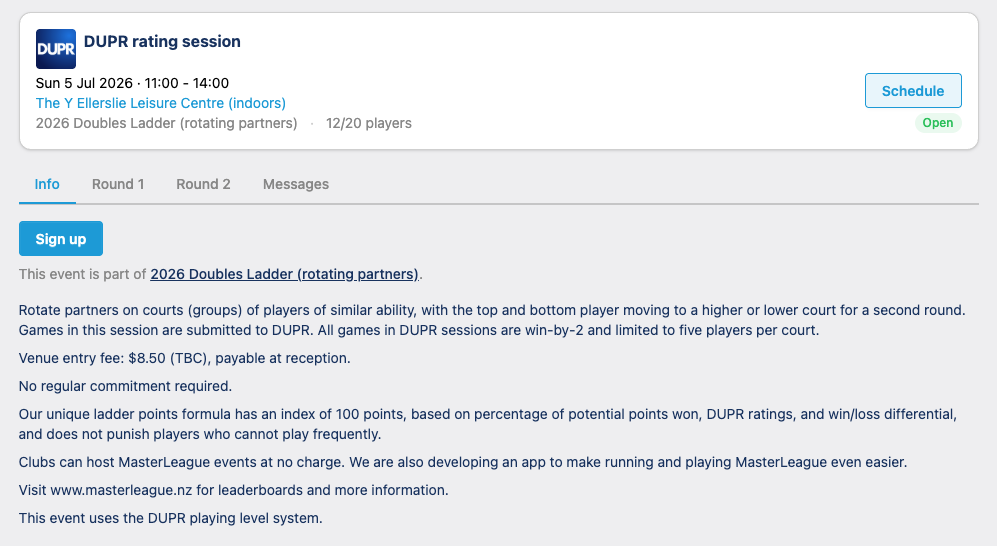
Your Schedule
Once you have registered, you can see the preliminary schedule. This will change when the attendees change. You'll see which court you're on, who your opponents and partners are for each game, and the current scores. The schedule updates in real time — no need to refresh.
Scoring
After each game, any player on the court can enter the score. Tap the score field next to the game, enter both teams' points, and tap Save. Scores are visible to everyone on the court immediately.
You can correct a score at any time during round 1 — just tap the score again and update it. The live standings on your court update as scores come in.
Late players
When players are not present when the games start, they are marked as late by the organiser. These players are spread over the courts, so each court can still start. You can see this on your court schedule and it will tell you what to play to, before checking if the player has arrived (see first screenshot).
If the player has arrived, you just fill in your score and play the next game. Once you have scored a game with the late player, the late status will disappear (see second screenshot).
If the player has not arrived, you simply click the red cross and the correct schedule will be generated (see third screenshot). Remember that this might also change the number of points it is played to.
Round 2
Once all games on your court are finished, you may be able to start round 2 before every court has wrapped up round 1. In the round 2 tab you can see who has been placed on which court and which games can already be played.
For Organisers
Changing Player Order
If players have no or incorrect DUPR ratings there are several options.
- 1 Ask the person to update their DUPR rating.
- 2 Ask an administrator to update the DUPR rating.
- 3 Ask an administrator to assign a provisional rating to the player (this will show up with an * in front of the rating).
- 4 Drag a player to the correct place in the player attendance (see below).
You can drag players up or down to adjust for their DUPR rating. This will assign a temporary rating for the scheduling. This is not visible to the participants, they will see the original DUPR rating. You can remove this temporary rating for the event by clicking the red cross left of their rating.
Late Players
If a registered player is not present when the games start, you can mark them as late in the player attendance list. Late players will be distributed over the courts so that each court can still start. On these courts there will be an indicator that there is a late player and how to handle that. The players on the court can handle the late player themselves. See Late Players.
Manual Mode
This should only be used in cases not covered by the automatic scheduling!
Manual mode lets you override the scheduling. Once manual mode is activated you are responsible for ensuring all players are placed correctly. As long as no matches have been scored you can undo the manual scheduling.
When NOT to use manual mode
- ✗ Just to tweak the player order — use drag-and-drop reordering instead
- ✗ As a routine step — automatic generation handles the vast majority of cases correctly
When to use manual mode
- ✓ A player is injured or has to leave and the autoscheduling doesn't handle this properly.
- ✓ Players realise after generation of round 2 that the scoring is incorrect.